Every function, and what it touches

Twenty-three functions in seven areas. Each states beside its name whether it can change a Jira issue or reaches into the person’s own mailbox.

2 · functions

Absence requests

Every Jira user requests time off from their own personal settings, and keeps track of it in one place.

Request an absence

No issue changes

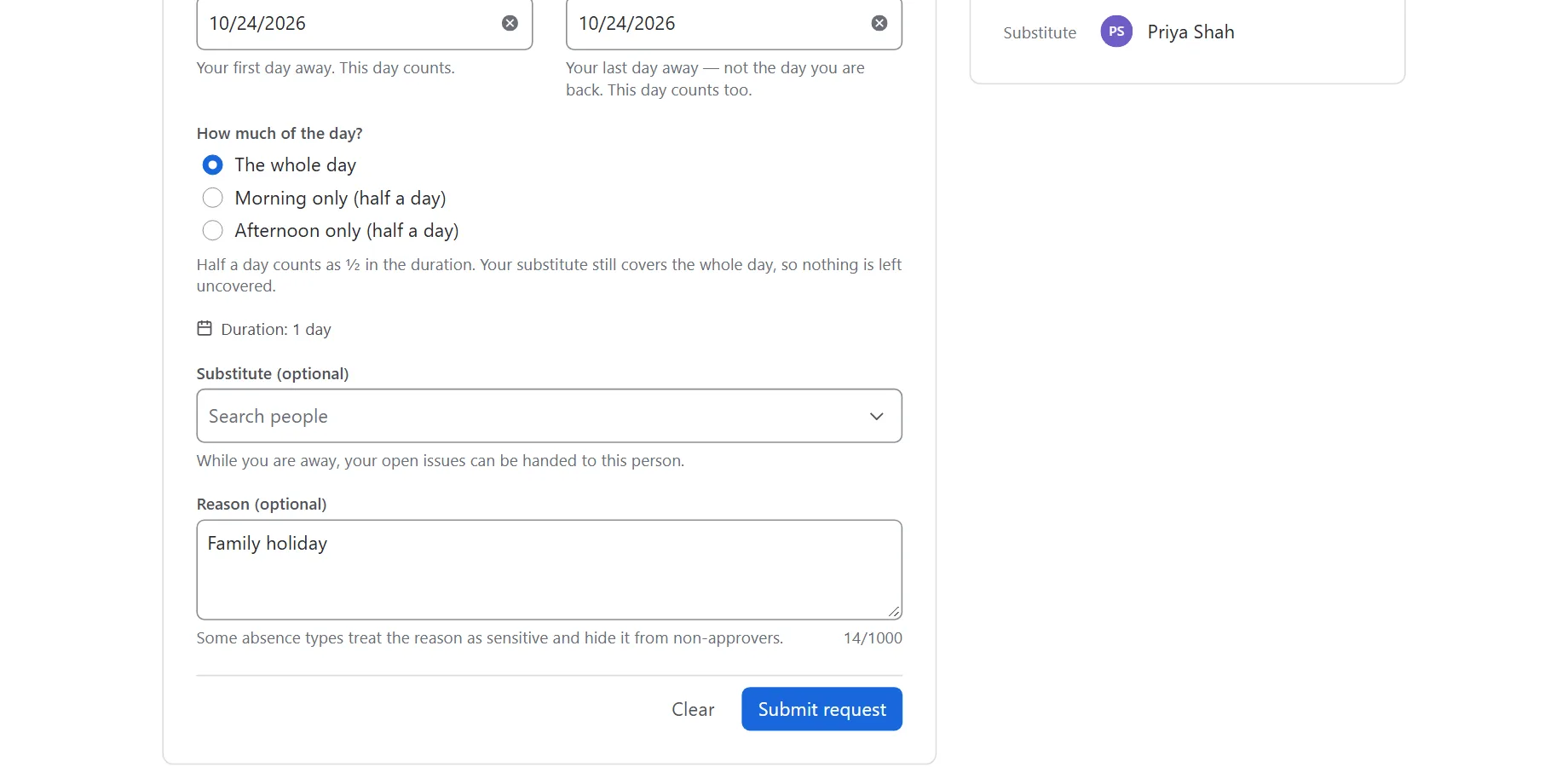
A short form on the personal settings page: absence type, start and end date, an optional substitute and an optional reason.

What you get

  • Absence types defined by your administrator, such as vacation, sick leave or training.
  • A substitute chosen from your site’s users, who takes over open work while you are away.
  • A free-text reason that is optional and treated as private.

Safeguards

  • A request is always recorded for the signed-in user. Nobody can file one on someone else’s behalf.
  • Every field is validated on the server: dates, type, lengths. The reason is limited to 1,000 characters.
  • When coverage is set up, the substitute must be assignable in a covered project where you may assign issues yourself.
My absences

No issue changes

Your own requests with their status: pending, approved, starting, active, declined, cancelled or completed.

What you get

  • The approver’s note on a decided request.
  • Cancelling your own request. Cancelling a running absence hands your issues back straight away, and removes the automatic reply and calendar entry.
  • A clear notice with the number of affected issues when some of your open issues could not be handed to your substitute, or back to you.

Safeguards

  • Only the owner of a request can cancel it. “Not found” and “not yours” look the same, so nobody can probe for other people’s records.

4 · functions

Approvals & team view

The app’s global page: an approval queue for the people who decide, and a calendar of who is away.

Approval queue

No issue changes

Pending requests for the approver to approve or decline, with an optional note for the requester.

What you get

  • Requests routed to the right people: a team’s own approvers, or the sitewide approver pool.
  • Approvers named individually or as Jira groups, where anyone currently in the group may decide.
  • Approvals that can be switched off entirely, so requests are approved automatically.

Safeguards

  • Nobody can decide their own request, re-checked on the server against the stored record.
  • A team approver decides only requests from their own team. Group membership is checked live at the moment of the decision.
  • Only a pending request can be decided. If two approvers click at once, the first decision stands.

Team calendar

No issue changes

A month calendar of who is away on which day, beside a detailed list of upcoming and ongoing absences.

What you get

  • Type, dates, status and substitute for each absence, in Jira Software and Jira Service Management alike.
  • Who sees whose absences is an administrator’s choice: all Jira users, members of the same team, or approvers and admins only.

Safeguards

  • For a type marked sensitive, such as sick leave, others see only “Absent”. This is enforced on the server.
  • Reasons stay hidden unless an administrator opts in, and the reason of a sensitive type stays hidden even then.
  • A browser never receives an absence, type or reason the viewer is not entitled to see.

Export and dashboard gadget

No issue changes

Take the overview with you: download it as a calendar or spreadsheet file, or put it on a Jira dashboard.

What you get

  • A calendar file (.ics) to import into Outlook, Google Calendar or Apple Calendar, and a spreadsheet file (.csv) for Excel or Google Sheets.
  • The gadget “Out of Office — Who is away” on any Jira dashboard: who is out now, and who goes away in the next two weeks.

Safeguards

  • Export files are built in your own browser; nothing is sent anywhere.
  • An export contains only the absences you were already allowed to see, and never the private reason — a downloaded file leaves the app’s protections behind.
  • The gadget reads the same data as the calendar, so adding it to a dashboard grants nobody any extra sight.

Search for absent people

No issue changes

An optional JQL function that finds work sitting with someone who is away: assignee in oooSyncAbsentUsers().

What you get

  • Works with assignee, reporter and creator, and with the operators “in” and “not in”, anywhere Jira accepts JQL.
  • Combine it like any other query, for example with statusCategory != Done to find work nobody is picking up.

Safeguards

  • Switched off until an administrator opts in, and only available where absences are visible to all users: Jira works the answer out once for the whole site and does not tell the app who is searching.
  • It discloses only that a person is away — never the absence type, never the reason. It deliberately takes no arguments, so it cannot be asked who is on sick leave.
  • Jira caches the answer for the whole site, so the app refreshes it every hour; a search is at most an hour behind.

5 · functions

Mail & calendar

Microsoft 365 or Google Workspace, connected once by an administrator: e-mails, automatic replies and calendar entries follow Jira, and out-of-office planned in the mailbox comes back. Off until switched on.

E-mail notifications

Mailbox

E-mails to the approvers when a request arrives, to the requester when it is decided, and to the substitute when cover starts.

What you get

  • Each kind can be switched off. Sent from a sender mailbox you choose, such as a shared mailbox.
  • In the recipient’s Jira language, English or German, with a link back to the app.
  • The approver’s note on a decision.

Safeguards

  • Never the absence type and never the private reason.
  • Only approvers configured as people, at most 25 per request, never the requester. Jira groups are not expanded.
  • At-least-once delivery without duplicates: a notification is remembered once it went out; throttling is retried twice.

Automatic reply

Mailbox

An approved absence schedules the Outlook automatic reply or Gmail vacation responder for exactly its time, half days included.

What you get

  • The person’s own text, the administrator’s default, or a built-in text in their language, with the return date.
  • The substitute’s name, if the administrator allows it; who outside the company receives the reply is a setting.
  • Switched off again when the absence is cancelled.

Safeguards

  • Only in a mailbox its owner linked; each person can opt out.
  • Times are computed in the site’s reference timezone, correctly across daylight-saving changes.
  • Microsoft and Google keep one reply per mailbox: cancelling switches off whatever reply is set at that moment.

Calendar entry

Mailbox

An entry shown as out of office in the person’s own calendar, for exactly the approved absence.

What you get

  • A title the administrator chooses, “Out of office” by default.
  • Updated if needed, removed when the absence is cancelled — only the entry the app wrote.

Safeguards

  • Never shows the absence type or reason, and sends no meeting invitations.
  • Each person can opt out.

Link your mailbox

No issue changes

On their own absence page, each person proves their mailbox with a 6-digit code sent to it, or uses their Atlassian account address if the administrator allows it.

What you get

  • Their own switches: calendar entry, automatic reply, import — and their own automatic-reply text.
  • Unlinking at any time, which also stops the import.

Safeguards

  • A typed-in address is never trusted, so nobody can set an automatic reply in a colleague’s mailbox.
  • The code is random, stored only as a hash, valid 15 minutes, 5 tries. Links are re-checked against the allowed domains at every use.

Import from Outlook or Google

Mailbox

A scheduled automatic reply or a calendar entry shown as out of office becomes an absence in Jira — as a request for the approver, or approved right away.

What you get

  • Both for the same trip become one absence. Calendar changes arrive within about a minute, automatic replies within the hour.
  • Until the absence starts, it moves or is cancelled with the mailbox.
  • The absence type the administrator chose for imports.

Safeguards

  • Switched off until an administrator enables it; each person can opt out.
  • Days already requested in Jira are never imported twice, and what the app wrote itself is never read back.
  • Reads only time windows — never messages, subjects, bodies, attendees or locations. Imports have no substitute and never reassign issues.

2 · functions

Substitute coverage

While an approved absence is active, open work goes to the substitute, in the projects an administrator chose, and comes back afterwards.

Automatic reassignment

Changes issues

When an approved absence starts, the person’s open issues in the covered projects are reassigned to their substitute.

What you get

  • Open means not in a Done status category, so finished work is left alone.
  • The app records which issues it moved, so it can hand back exactly those.
  • An hourly job starts absences within the hour after midnight on their start date, in the reference timezone your administrator sets.

Safeguards

  • Coverage never runs instance-wide: only in the projects an administrator selected, and only where the absent person may assign issues themselves.
  • Issues the substitute cannot be assigned to are skipped and counted on the requester’s page, never silently dropped.
  • The work is idempotent: running it again never assigns anything twice.

Hand back on return

Changes issues

Once the last day of the absence has passed, the issues the substitute still holds go back to the person who was away.

What you get

  • Every issue the app moved and the substitute still holds, including ones resolved in the meantime.
  • The list of moved issues is deleted once coverage has ended.

Safeguards

  • Issues the substitute passed on to someone else stay where they are.
  • Handing back never needs an active subscription, so issues are never stranded with a substitute.
  • An absence that was approved but never became active is simply closed.

2 · functions

On the issue

Where most people notice an absence: on an issue assigned to someone who is out.

Out-of-office hint

No issue changes

On an issue whose assignee is currently away, a small panel shows “out of office until” the return date and who is covering.

What you get

  • The return date and the substitute, at a glance in the issue view.
  • Nothing at all when the assignee is present, so it never adds noise.

Safeguards

  • Never shows a reason or the absence type.
  • Only for signed-in users; the issue is read with the viewer’s own permissions.

Assign-to-absent warning

Changes issues

When an issue is assigned to someone who is out of office, the app posts a comment naming the absence’s end date and the substitute.

What you get

  • The person who assigned the issue notices the absence straight away.
  • A setting to switch the warning off, and one site-wide comment language: English or German.

Safeguards

  • Internal on Jira Service Management requests: the customer never sees it in the portal. On Jira Software issues it is a normal comment.
  • Posted at most once per issue and absence, and only in the projects the app works in.
  • Reactive by design: Forge cannot block an assignment as it happens, so the comment follows just after it.

5 · functions

Administration

One settings page under Jira settings → Apps, for Jira administrators only, with safe defaults so nothing blocks Jira before it is configured.

Settings

No issue changes

Absence types, approvers and teams, the projects the app works in, reassignment policy, reference timezone, visibility, the warning comment and Mail & calendar.

What you get

  • Absence types with your own labels, each with a “sensitive” flag. Vacation, sick leave (sensitive), training and other ship as a starting set.
  • A sitewide approver pool and optional teams, each with members and their own approvers, as users and Jira groups.
  • A reassignment policy: reassign all open issues to the substitute, or none.
  • Mail & calendar: provider, credentials (write-only), sender mailbox, allowed domains, what is sent, and the import — with a connection test that names the precise problem.

Safeguards

  • Every read and save re-verifies Jira administrator permission on the server; the page’s location is not treated as access control.
  • Every value is validated on save, with an actionable message.

Teams from Atlassian

No issue changes

Link one of the app’s teams to an existing Atlassian Team, so its members come from Atlassian and stay up to date.

What you get

  • A search for Atlassian Teams, showing each team’s name and member count.
  • Members read from Atlassian when needed and kept for at most 15 minutes. Approvers are still chosen in the app.

Safeguards

  • Searching teams is for Jira administrators only and returns names and member counts, never member lists.
  • Fail-closed: a team that cannot be read counts as having no members, so requests go to the approver pool and visibility shows less, never more.
  • Read-only: the app never changes an Atlassian Team. Teams anyone can join are ignored for same-team visibility.

Change history

No issue changes

A running log of configuration changes: who changed the settings, when, and which settings changed.

What you get

  • The 100 most recent changes on the settings page.
  • An entry when a person’s data was deleted, with counts, never whose data it was.

Safeguards

  • Records which settings changed, never their values, so the log itself cannot leak configuration such as who is in a pool.

Built-in help

No issue changes

A Help tab that answers what the app can do, what the rules are, and why something is not available on this site.

What you get

  • A searchable index of the full manual, linking straight into it — readable without an Atlassian account.
  • A table of what this site has switched on: approvals, coverage, visibility, the absence search, holidays and retention.
  • The statuses explained, the rules a request must meet, and what the app never does.

Safeguards

  • The index is generated from the same documentation that is published, so the app cannot advertise a chapter the manual no longer has.
  • The limits are reported by the running app, not written down twice, so a number someone plans around is the one actually enforced.
  • It shows counts and switches only — never project names, team names, holiday dates or people — so it cannot be used to read the configuration.

Run activation now

Changes issues

Runs the hourly coverage job immediately: absences due today are activated, ended ones handed back.

What you get

  • Coverage applied right after a settings change or while testing, without waiting for the next hourly run.
  • Counts of the activations and expiries queued, and of any that failed to queue.

Safeguards

  • Administrators only, re-checked on the server.
  • The same idempotent work as the hourly job, so pressing it twice changes nothing.

3 · functions

Data privacy & retention

Keep personal data to what the work needs, and delete it when it is due. Everything stays in Forge storage for your site.

Retention period

No issue changes

An optional setting that deletes completed, cancelled and declined absences a set number of days after they ended.

What you get

  • Any period from 0, which keeps everything and is the default, up to 3,650 days.
  • Checked daily. Older change-history entries follow the same period.

Safeguards

  • Pending, approved and active absences are never deleted by retention, nor any absence that still has issues to hand back.
  • Never touches issues: they stay with their current assignee.

Delete all data of a person

No issue changes

For data-subject requests: an administrator picks a person and, after a confirmation, deletes what the app stores about them.

What you get

  • The absences they requested are deleted, including reason and type, together with their mailbox link and the automatic reply and calendar entries the app wrote.
  • References to them in other people’s absences, the approver pool and teams are removed; their change-history entries show “Deleted user”.
  • A result with the number of absences deleted and records anonymised.

Safeguards

  • Jira administrators only, re-checked on the server. Works with or without an active subscription.
  • Does not change Jira: issues, comments, Jira groups and Atlassian Teams are left as they are.

Closed-account deletion

No issue changes

Once a week the app reports the account IDs it stores to Atlassian, as Atlassian requires, and deletes the data of every account reported as closed.

What you get

  • The same deletion as “Delete all data of a person”, with no action needed from your administrators.

Safeguards

  • Uses only Atlassian’s own personal data reporting service; nothing leaves Atlassian.
  • Runs regardless of the subscription.

A closer look

What it looks like in Jira

Request time off where your profile lives

The personal settings page holds the request form and your own list of absences with their status and the approver’s note.

  • Absence type, start and end date, half days, optional substitute, optional reason.
  • Cancel your own request; the automatic reply and calendar entry go with it.
Personal settings page: the request form with type, start date, end date, substitute and reason, above the list of the user’s own absences with their status.

Your mailbox, your choices

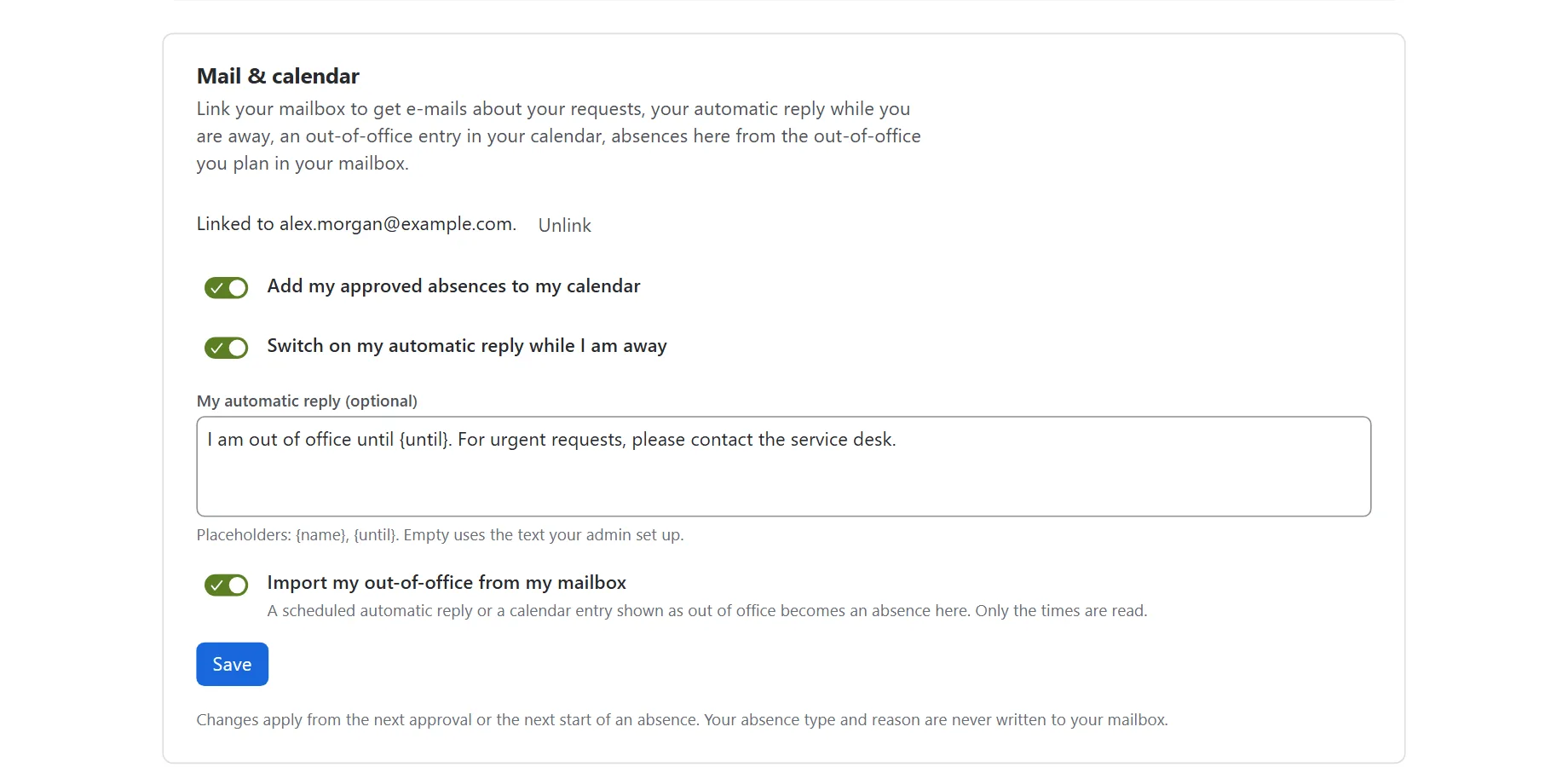
Link your mailbox once with a code sent to it. Then choose what the app may do there: the calendar entry, the automatic reply with your own text, and the import of the out-of-office you plan in Outlook or Google.

  • Every switch is your own; nobody else can change them.
  • Your absence type and reason are never written to your mailbox.
Mail & calendar card: linked to an address, switches for the calendar entry, the automatic reply and the import, and a personal automatic-reply text with placeholders.

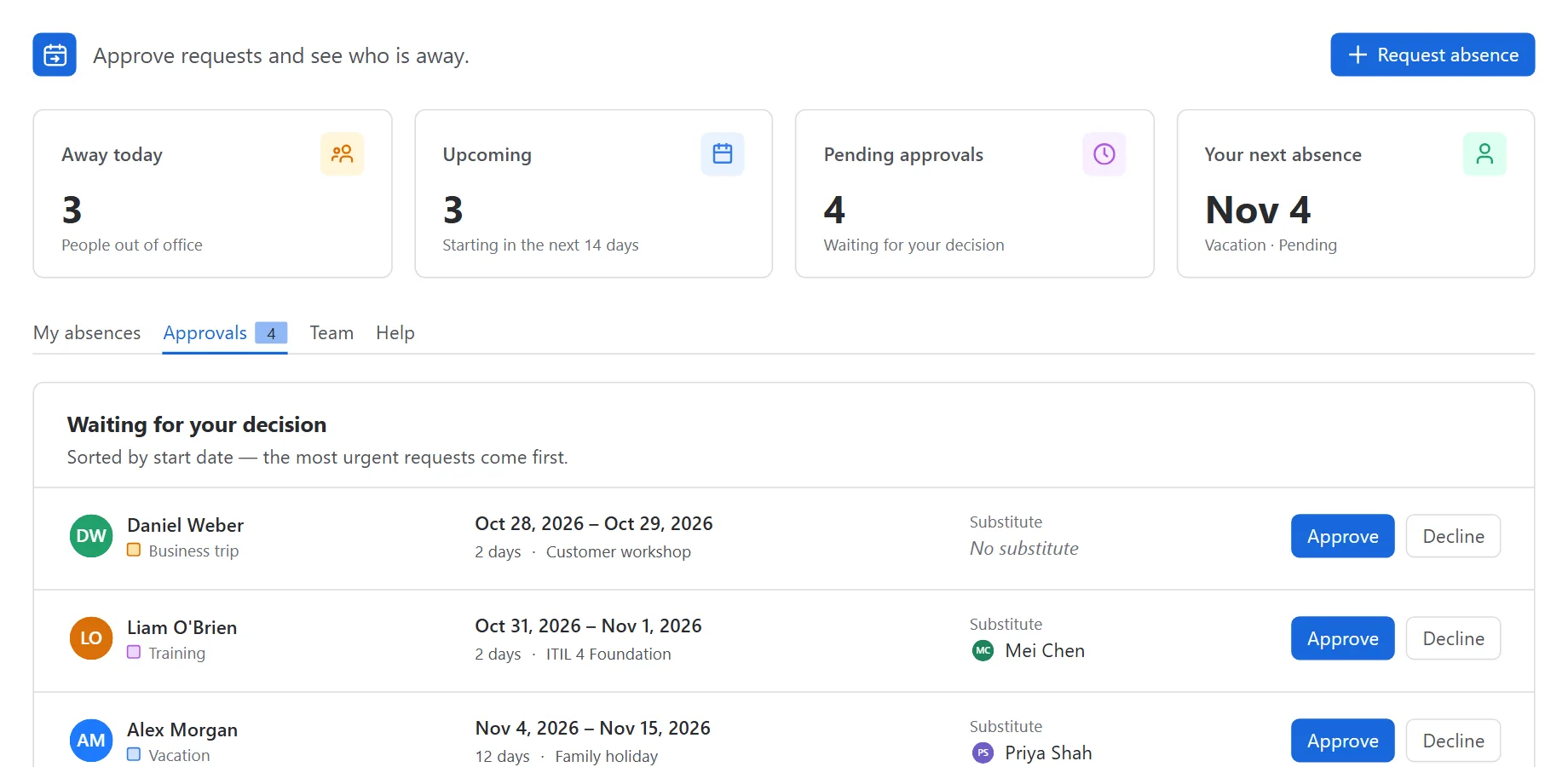
An approval queue for the people who decide

Approvers get an e-mail when a request is routed to them and decide in the queue, with an optional note for the requester.

  • Routed to a team’s own approvers, or to the sitewide pool.
  • Deciding your own request is refused on the server.
Approval queue on the app’s global page: pending absence requests with requester, type, dates and substitute, each with approve and decline buttons.

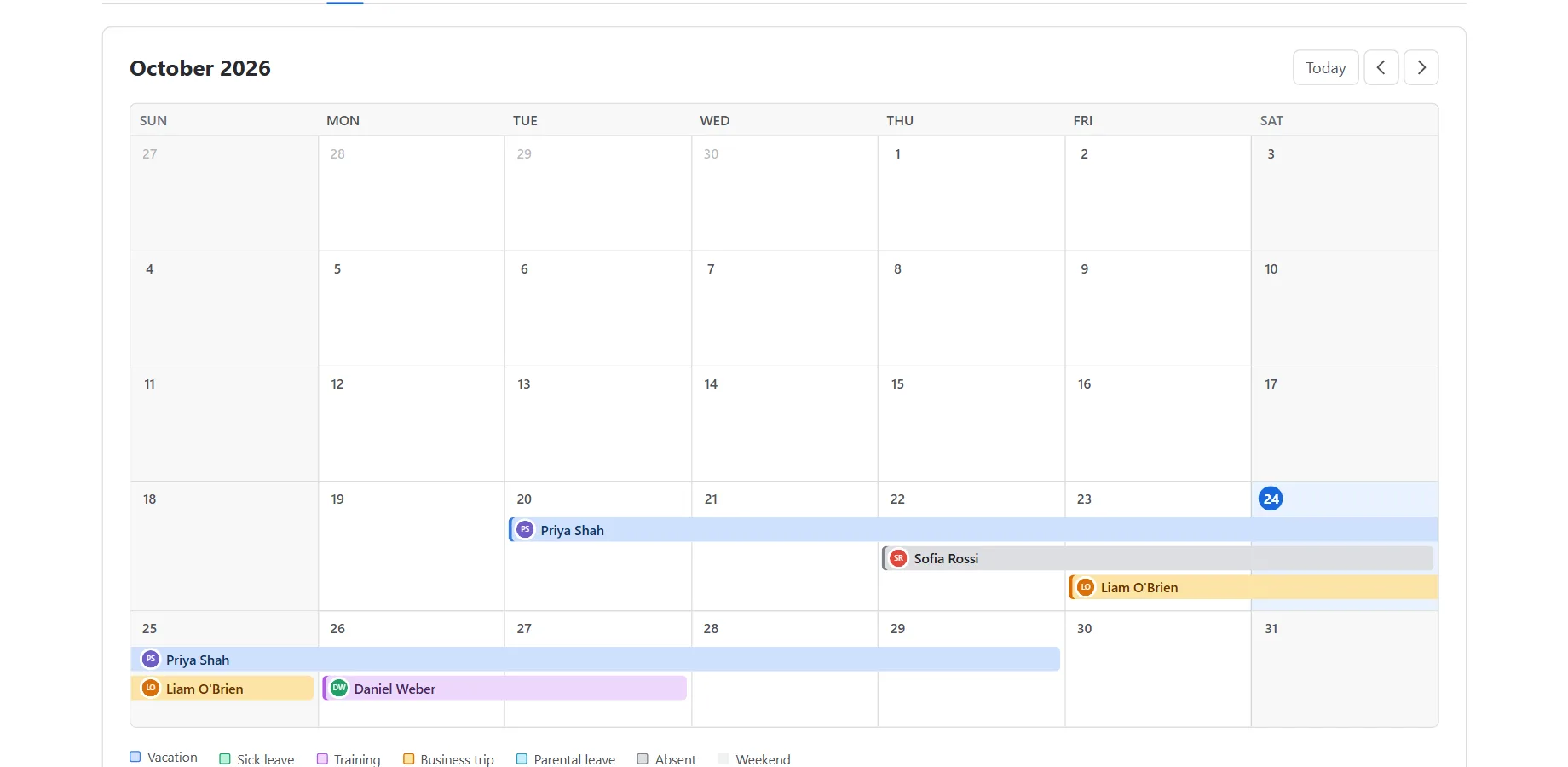
Who is away, at a glance

The Team tab shows a month calendar of absences beside a detailed list with type, dates, status and substitute — including absences imported from the mailbox.

  • Sensitive types appear to others only as “Absent”.
  • Who sees whose absences is a setting: all users, the same team, or approvers only.
Team calendar: a month grid with absences per day, and a list of upcoming and ongoing absences.

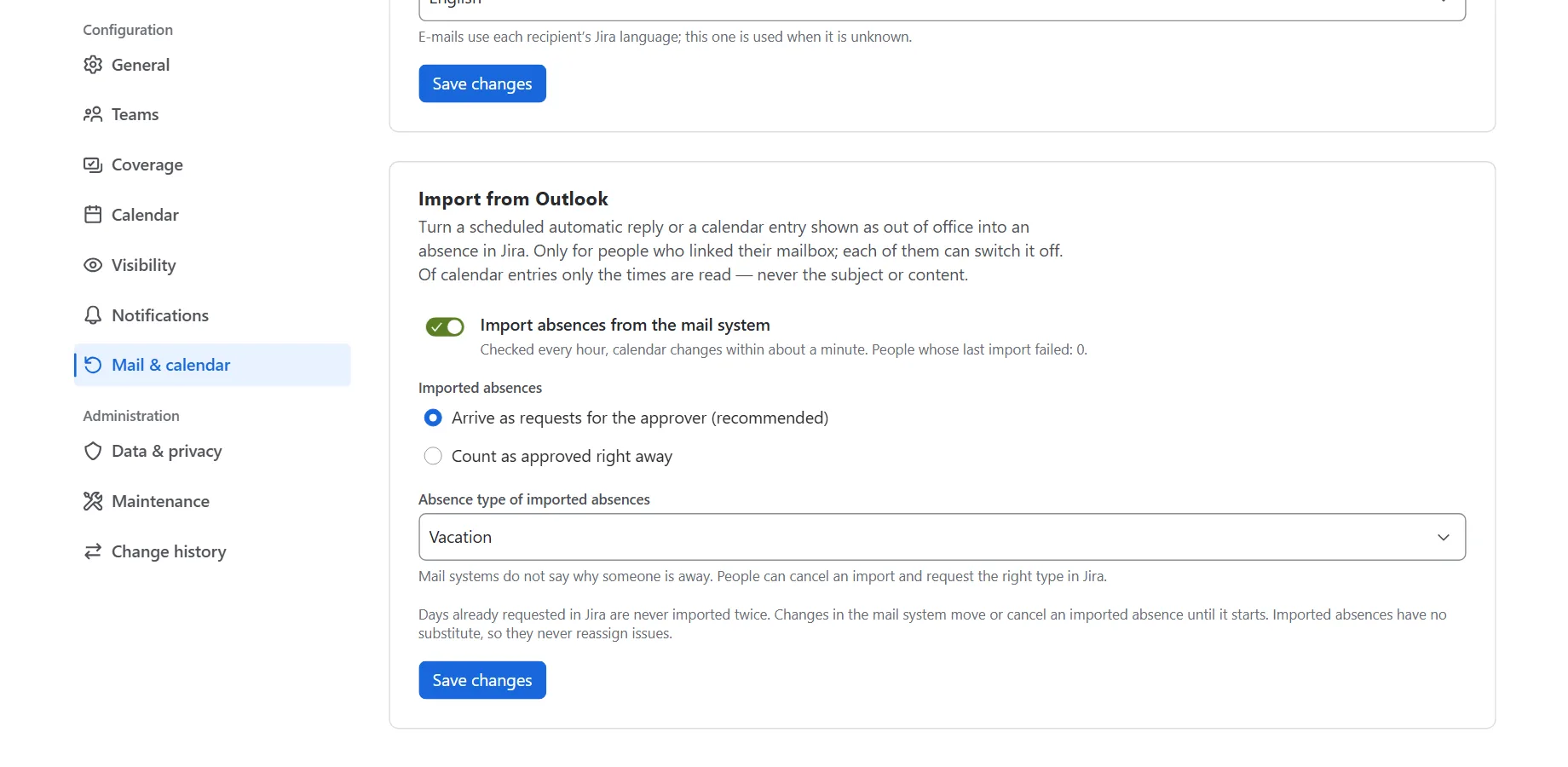
Mail & calendar, set up once

Administrators connect Microsoft 365 or Google Workspace, choose what the app does — e-mails, automatic reply, calendar entry — and whether out-of-office is imported back.

  • A connection test explains precisely what is missing: consent, an expired secret, a wrong tenant id.
  • Imports as requests for the approver, or approved right away, with the absence type you choose.
Admin settings, Mail & calendar section: the import card with the switch, the choice between requests and approved absences, and the absence type for imports.

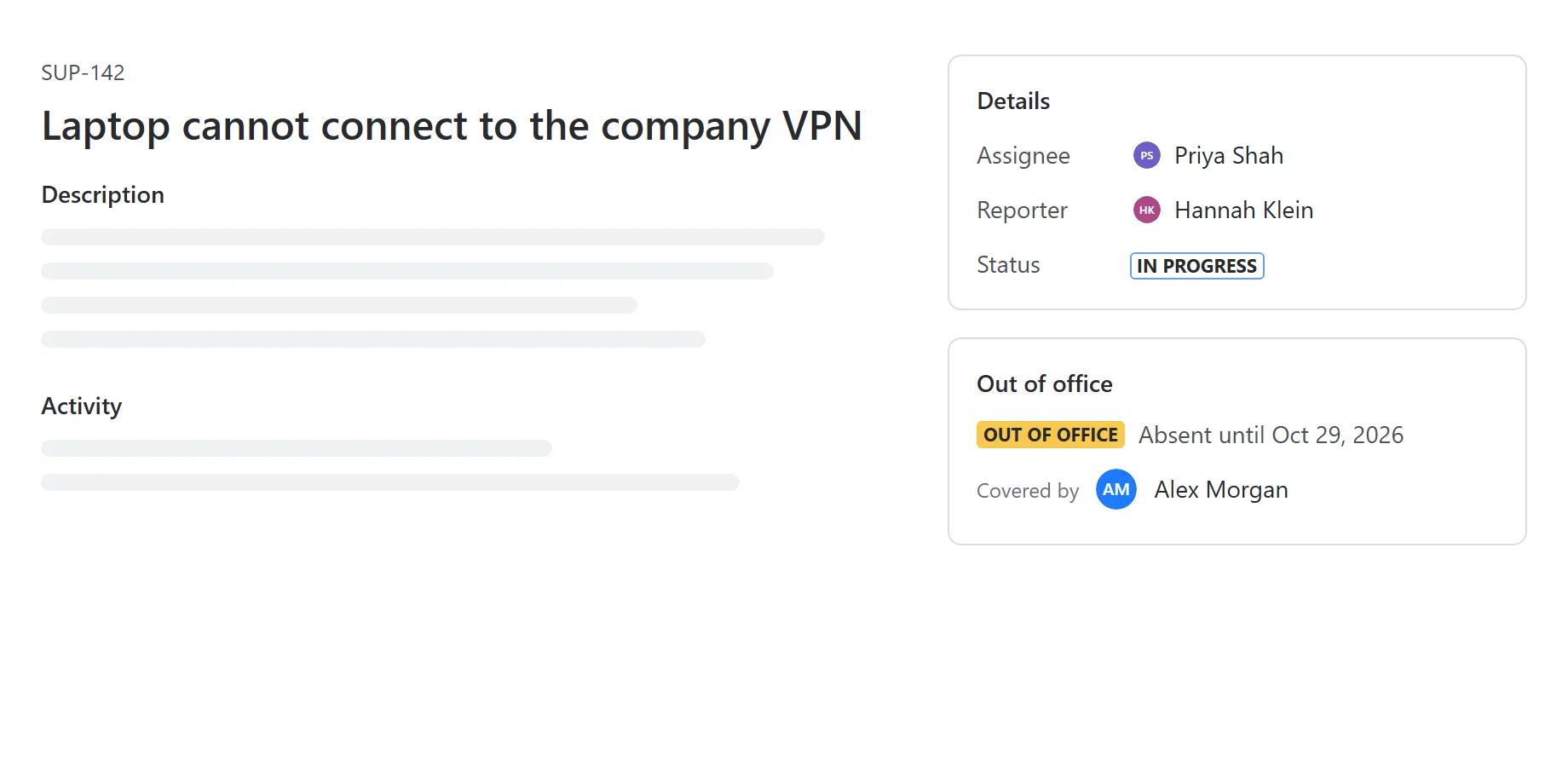
The hint on the issue

When an issue’s assignee is currently away, the issue view shows until when, and who is covering. When they are present, it shows nothing.

Jira issue view with the out-of-office panel: absent until a date, covered by a named substitute.

Limits and fixed rules

What the app enforces regardless of configuration. Everything else is a setting.

RuleValue
Reason text1,000 characters, never sent to a mailbox
Length of one absence366 days, every calendar day counts
Mail systemsMicrosoft 365 or Google Workspace, one per site
Linking a mailbox6-digit code, valid 15 minutes, 5 tries
Allowed e-mail domainsUp to 20
Approvers e-mailed per requestUp to 25, people only (not Jira groups)
Mail retriesUp to 3 attempts, after 5 and 10 minutes
Automatic-reply text2,000 characters
ImportHourly; calendar changes within about a minute
Shortest imported windowHalf a day (4 hours)
CoverageOpen issues only, up to 5,000 per absence, in selected projects
Retention period0 (keep) to 3,650 days
LanguagesEnglish and German

Clear boundaries

What the app deliberately does not do

  • No blocking of assignmentsForge has no hook that runs before an assignment is saved. The app warns just after, and says so.
  • No type or reason in any mailboxE-mails, automatic replies and calendar entries say that someone is away and until when — never why.
  • No reading of your mailThe app never reads messages. Of calendar entries it reads only the start and end of those marked out of office.
  • No trusting a typed-in addressA mailbox is linked only after its owner proved it with a code, or through their own Atlassian account address.
  • No e-mails to Jira groupsReading group members would need a far-reaching Jira permission the app does not request. Group approvers see requests in Jira.
  • No instance-wide reassignmentCoverage and warning comments run only in the projects an administrator selected. Imported absences have no substitute, so they never reassign issues.
  • No approving your own absenceNot even as a pool member or administrator; checked on the server.
  • No leave balancesIt is not an HR system: no allowances, accruals or remaining days.

Plan the next holiday season before it starts

Set up absence types and approvers, connect Microsoft 365 or Google Workspace and link a pilot group in under an hour. Jira keeps working while you do.